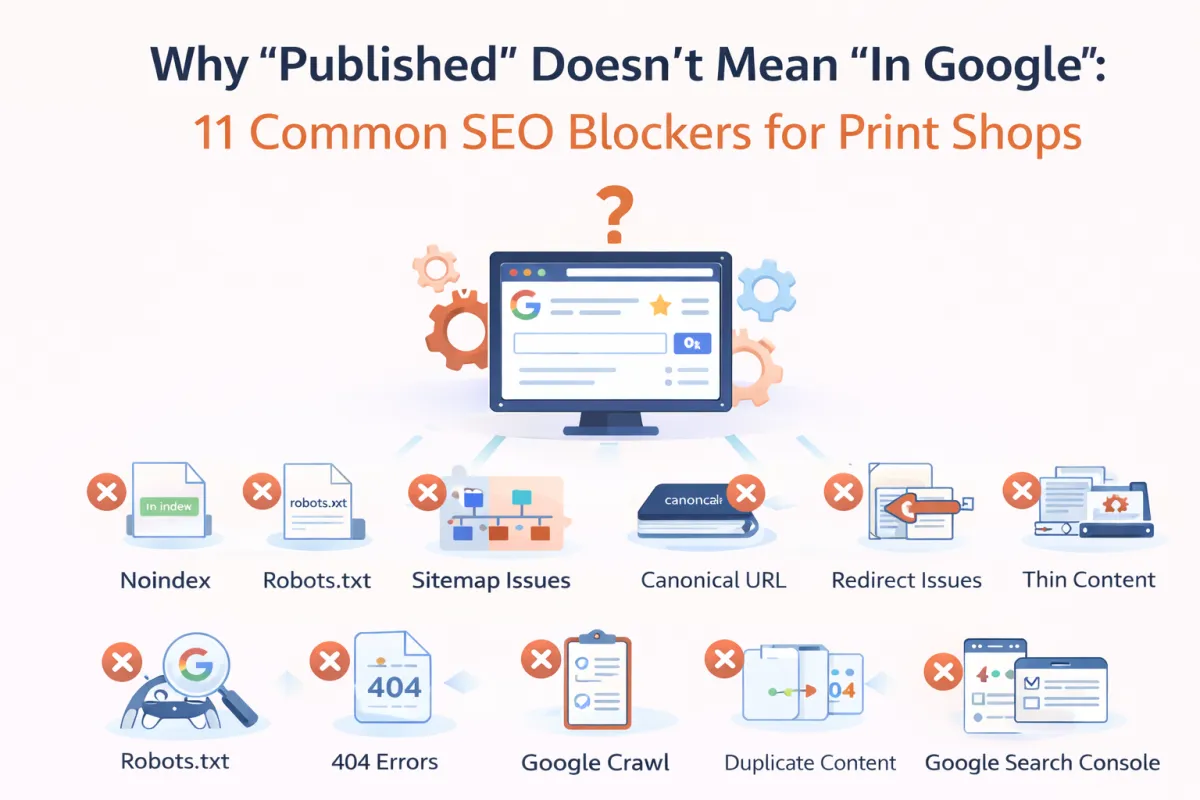
Why "Published" Does't Mean "In Google": 11 Common SEO Blockers for Print Shops
You hit publish on your DTF Gang Sheets page. It's live. But Google? Crickets. Here's what's actually blocking you—and how to fix it.
Published: October 24, 2023 | Reading Time: 8-10 minutes | Category: SEO for Print Shops
You just launched your "Custom DTF Transfers" collection page. You spent hours writing the descriptions, uploading high-quality images of your prints, and setting your pricing tiers. You hit the "Publish" button. You can see it on your site. Your existing customers can click the link in your email newsletter and order from it. Everything seems perfect.
But when you search Google? Nothing. Not on page 1. Not on page 10. You try searching specifically for your business name plus the product. Still nothing. It's like the page doesn't exist to the outside world.
This is one of the most frustrating moments for any print shop owner. You did the work, but you're not getting the visibility.
The truth is, Google doesn't automatically show everything that gets published. There is a specific technical process—a pipeline—that every page must pass through before it can appear in search results. And unfortunately, there are specific "blockers" that can stop your page dead in its tracks at any point in that pipeline.
In this guide, we will break down exactly why your published pages might be invisible to Google, covering the 11 most common blockers specifically for DTF and print businesses, and provide actionable fixes for each one.
Section 1: The Truth About Publishing vs. Google Visibility
Before we dive into the specific problems, let's quickly refresh how the Google pipeline works. It's not magic; it's a three-step system:Crawl → Index → Rank.
Crawl:Google finds your page exists.
Index:Google understands your page and stores it in its library.
Rank:Google decides to show your page for specific search queries.
The critical misunderstanding is thinking that "Published on Website" equals "In Google's Index." It does not. Your page can be fully live on your website for humans but completely blocked from Google's bots.
[ Website Publish ] ≠ [ Google Index ]
Your Page Live → (Blocked?) → Google Bot Crawl → (Blocked?) → Google Index → Ranking
We categorize these issues into two main buckets:
Crawl Blockers:Google literally cannot find or reach your page. To Google, the page is invisible.
Index Blockers:Google found the page, but decided not to keep it. It read the page and threw it in the trash instead of the library filing cabinet.
Section 2: The 5 Most Common Crawl Blockers
If Google can't crawl the page, the game is over before it begins. Here are the top reasons Google's bots might never make it to your new product page.
Blocker #1: No Internal Links (The Buried Page Problem)
Google's bots discover new pages primarily by following links from pages they already know about. If you create a new page but don't link to it from anywhere else on your site, it is an "orphan page."
The DTF Scenario:You created a new collection at/collections/dtf-gang-sheets. You plan to run ads to it later, so you didn't add it to your main navigation menu or link to it from your homepage. Because there is no path leading to it, Google's bot lands on your homepage, looks around, and leaves without ever seeing your new page.
How to Check:Navigate your site as a customer would. Can you click your way to the new page starting from the homepage? If you have to type the URL directly to find it, Google likely can't find it either.
The Fix:Add the page to your main menu, footer menu, or link to it from a related product page or blog post.
WarningJust because YOU know the URL doesn't mean Google can find it. Google needs a path to follow.
Blocker #2: Robots.txt Blocking
Your website has a file calledrobots.txtthat acts like a gatekeeper. It tells search engine bots which parts of your site they are allowed to enter and which are off-limits. It serves a purpose (keeping bots out of admin pages or cart pages), but it is easy to misconfigure.
The DTF Scenario:A developer or a poorly configured Shopify app adds a rule that accidentally blocks all "collections" or "search" result pages. Suddenly, your entire catalog is marked "Do Not Enter."
How to Check:Go toyourdomain.com/robots.txtin your browser. Look for lines that sayDisallow:followed by paths that look like your product pages.
User-agent: * Disallow: /collections/ <-- This blocks ALL collection pages!
The Fix:Remove the disallow rules that are blocking your public content. You may need a developer's help if you aren't comfortable editing site files.
Blocker #3: Login/Password Protection
Google bots cannot type in passwords. They cannot log in. Anything behind a login screen is completely invisible to search engines.
The DTF Scenario:You run a wholesale print shop, so you set your "Wholesale DTF Transfers" page to require a customer account login to view pricing. Because the entire page is gated, Google cannot crawl it, read the text, or index it.
The Fix:If you need SEO visibility for wholesale terms, create a public-facing "Wholesale Program" landing page that explains the benefits and requirements. Optimizethatpage for search, and put the actual ordering portal behind the login.
Blocker #4: Server Errors & Slow Load Times
Google has a limited "crawl budget" for every site. If your server takes 10 seconds to load a page, or if it frequently returns "500 Internal Server Error" messages, the bot will give up and leave. It assumes the site is broken or not worth the resources.
How to Check:Use the "Coverage" or "Page Indexing" report in Google Search Console. Look for "Server error (5xx)" warnings.
The Fix:This is usually a hosting or coding issue. Ensure your images are compressed (don't upload 10MB raw print files to the product gallery!) and that your hosting plan is robust enough to handle traffic.
Blocker #5: Orphan Pages (No Sitemap)
Similar to Blocker #1, an orphan page has no links pointing to it. Additionally, it might be missing from your XML Sitemap—a master list of URLs your site provides to Google.
The Fix:Most platforms like Shopify or WordPress generate sitemaps automatically. Ensure your new page is actually showing up inyourdomain.com/sitemap.xml. If not, check your page visibility settings in your CMS.
Section 3: The 6 Most Common Index Blockers
Let's assume Googledidfind your page. It crawled it successfully. But then... it decided not to index it. Why? Here are the most common reasons.
Blocker #6: Noindex Tags
A "noindex" tag is a snippet of code in the header of a webpage that explicitly commands Google: "Do not show this page in search results." It is the most common reason for invisible pages.
The DTF Scenario:You duplicated an old "Thank You" page (which was set to noindex) to create your new "Gang Sheet Builder" page, but you forgot to change the settings. Now your most important product page is telling Google to ignore it.
How to Check:Right-click your page and select "View Page Source." Search (Ctrl+F) for the word "noindex".
<meta name="robots" content="noindex">
The Fix:Go into your website editor (Shopify, WordPress, etc.), find the SEO settings for that specific page, and ensure it is set to "Index" or that the "Hide from search engines" box is unchecked.
Critical CheckThis is the #1 reason pages don't appear in Google. Always check for a noindex tag first.
Blocker #7: Canonical Tags Pointing Elsewhere
A canonical tag tells Google, "This page is a duplicate. Therealversion is over there." It's useful for preventing duplicate content issues, but disastrous if pointing to the wrong place.
The DTF Scenario:Your "Custom Screen Print Transfers" page has a canonical tag pointing to your Homepage. Google sees this and says, "Okay, I won't index this page; I'll just credit the homepage instead." The specific product page disappears from results.
The Fix:Ensure the canonical tag on your page is "self-referential"—meaning it points to its own URL.
Blocker #8: Thin/Duplicate Content
Google wants to index unique, valuable content. If a page has very little text ("thin content") or is nearly identical to other pages on the web ("duplicate content"), Google may simply choose not to index it to save space.
School Spirit & Mascot Sellers: This Is Your Biggest Problem
This is extremely common in the spirit wear niche. You create 40 different pages—one for each local school mascot (Eagles, Tigers, Bulldogs, etc.).
Every page has the exact same layout, the exact same shirt descriptions, and the exact same pricing. The only difference is the word "Tigers" is swapped for "Eagles."
The Result:Google sees 40 pages that are 99% identical. It views this as spammy, low-quality duplication. It will likely index one or two of them and ignore the rest.
The Fix:You must make pages unique. Add specific details about the local school, unique testimonials, or different photos for each mascot page. If you can't, consider consolidating them into one "Local School Spirit Wear" master page with a dropdown menu.
Blocker #9: Low-Quality or Auto-Generated Content
If your page looks like a spammy doorway page—just a list of keywords like "DTF transfers Texas, DTF transfers Dallas, DTF transfers Houston" with no real value—Google's quality algorithms will filter it out.
The Fix:Write for humans, not robots. Include helpful FAQs about press settings, clear sizing guides, realistic photos of the transfers, and honest turnaround times. Prove the page has value.
Blocker #10: Incorrect Hreflang Tags
This is more technical and applies if you have multiple versions of your site for different languages or regions (e.g., a US store and a Canadian store). If the tags telling Google which version is for which country are broken, Google might get confused and de-index pages.
The Fix:If you only sell in one country/language, ensure you aren't using these tags unnecessarily.
Blocker #11: Crawled but Not Indexed (Google's Choice)
Sometimes, everything is technically correct. No blocks. No errors. But in Search Console, you see the status: "Crawled - currently not indexed."
The Explanation:This is Google politely saying, "We saw your page, but we don't think it's important enough to store right now." This often happens to new sites with low "authority" (few backlinks) or sites with thousands of generic product pages.
The Fix:You need to prove the page's worth. Build internal links to it. Get external links (backlinks) from other sites. Improve the content quality significantly. Make Googlewantto store it.
Section 4: How to Diagnose Which Blocker You Have
Don't guess. Follow this simple diagnostic flow to find the culprit.
StepQuestionWhere to Check1Is the page actually live?Open URL in "Incognito" window. Does it load?2Is it indexed at all?Google search:site:yourdomain.com "Page Title"3Is it blocked by robots.txt?Checkyourdomain.com/robots.txt4Is there a noindex tag?View Page Source > Search "noindex"5What does Google say?Google Search Console > URL Inspection Tool6Is it duplicate content?Compare text with your other similar pages.
Section 5: Priority Fix Checklist
If your page is missing, run through this checklist in order. Fix the first items first, as they are absolute blockers.
Check #1: Remove Noindex Tags.This is the most common and easiest fix. Ensure meta robots tag says "index".
Check #2: Verify Internal Linking.Make sure the page is linked from your menu or footer. Don't leave it orphaned.
Check #3: Review Robots.txt.Ensure you haven't accidentally disallowed the folder your page lives in.
Check #4: Check Canonical Tags.Ensure the page points to itself as the original version.
Check #5: Add Substantial Content.If you have 50 similar products, write unique descriptions for the priority ones.
Check #6: Submit to Search Console.Use the "Request Indexing" button in the URL Inspection tool to invite Google back.
Section 6: Special Warning for Multi-Page Sites
The "More Pages" Trap
Print shops often believe that "More Pages = More Google Traffic." They create hundreds of programmatic pages like "DTF for Birthdays," "DTF for Weddings," "DTF for Reunions," all with identical content.
This strategy used to work in 2010. It does not work today.
Google's "Helpful Content" updates specifically target sites that churn out mass-produced, low-value pages. If your site has 500 pages but only 5 of them have unique, helpful writing, Google may classify yourentire websiteas low quality and suppress it in rankings.
The Solution:Quality over quantity. One comprehensive "Ultimate Guide to DTF Transfers for Events" page is far better than 20 thin pages targeting specific events.
Conclusion & Next Steps
Publishing a page is only step one. Getting it into Google requires clearing the path for the crawlers and proving the value for the indexer. If your DTF or print shop pages aren't showing up, it's not bad luck—it's likely one of these 11 blockers.
Start with the technical basics: check for noindex tags and ensure you've actually linked to the page. Once the technical doors are open, focus on content quality to ensure Googlekeepsthe page in its index.
Once your pages are indexed, the next challenge is ranking them high enough to get traffic. That requires understanding exactly what your customers are searching for—which leads us to the next topic.
Need help diagnosing your shop's SEO?
Stop guessing why your pages aren't ranking.
Download our Free SEO Blocker Checklist for Print Shops
About the Author:This guide is part of our comprehensive SEO series for print shops, helping DTF transfer businesses and screen printers stop guessing and start ranking.
